SEJR POS · Troubleshooting
Check the connection
Here you learn how to check whether the till has a good connection to SEJR.
Watch how it is done35 sec.
The page measures the response times of the traffic the till is already making. It is useful if the till feels slow.
Step by step
Tick a step when it is done
Button names are written as they appear on a till set to Danish. The brackets give the name on a till set to English, the first time a button is mentioned. Change the till's language
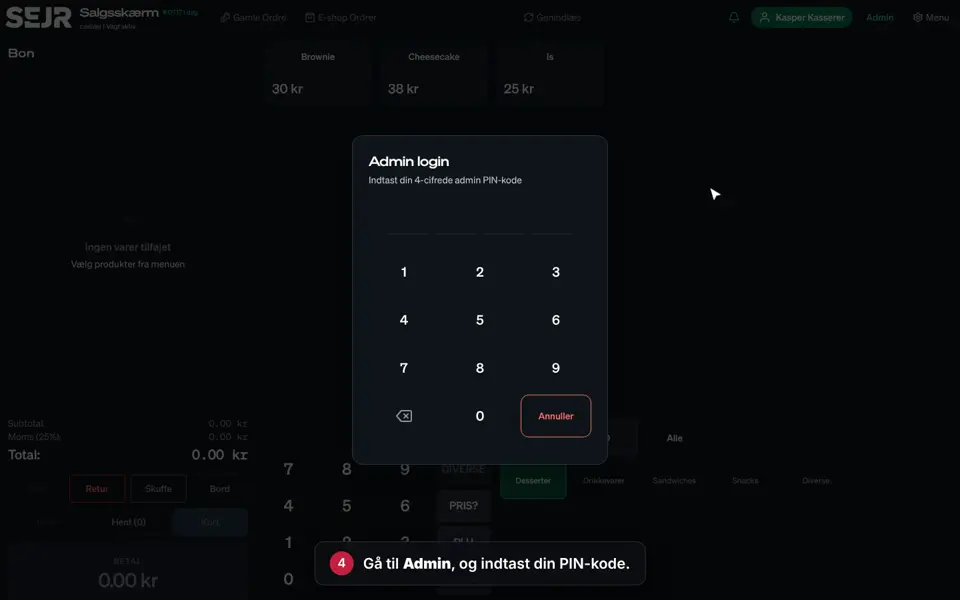
- Tap Admin at the top right of the till.
- Enter your 4-digit admin PIN.
- Choose Forbindelse (Connection) in the menu on the left.
- Tap Nulstil målinger (Reset samples) to start a new measurement.
- Stay on the page for a moment, or use the till, and new measurements are collected.
- See the assessment at the top under Vurdering (Verdict). Green means the connection is fine.
- Look at the response times for Netværk (Network), Server and Total. Netværk is your internet connection. Server is SEJR.
How to read the assessment
- Forbindelsen ser fin ud (Connection looks fine): Everything is in order.
- Kundens internet er langsomt (The customer's internet is slow): Check your internet and your router.
- Vores server er langsom (Our server is slow): Contact SEJR Support.
- Ustabil forbindelse (Unstable connection): Many calls fail. Check the cables and the Wi-Fi, and contact support if it continues.
Finishing up
Now you know whether the connection is in order.
If the assessment is yellow or red, take a picture of the page and send it to SEJR Support. Then we can quickly see where the problem lies.
Still not working? Contact SEJR Support. We are happy to help.
Did the guide help you?