SEJR POS · Troubleshooting
The printer is not printing
Here you learn how to check the receipt printer if no receipt comes out.
Watch how it is done43 sec.
First check that the printer is switched on, has paper, and that the lid is closed.
Step by step
Tick a step when it is done
Button names are written as they appear on a till set to Danish. The brackets give the name on a till set to English, the first time a button is mentioned. Change the till's language
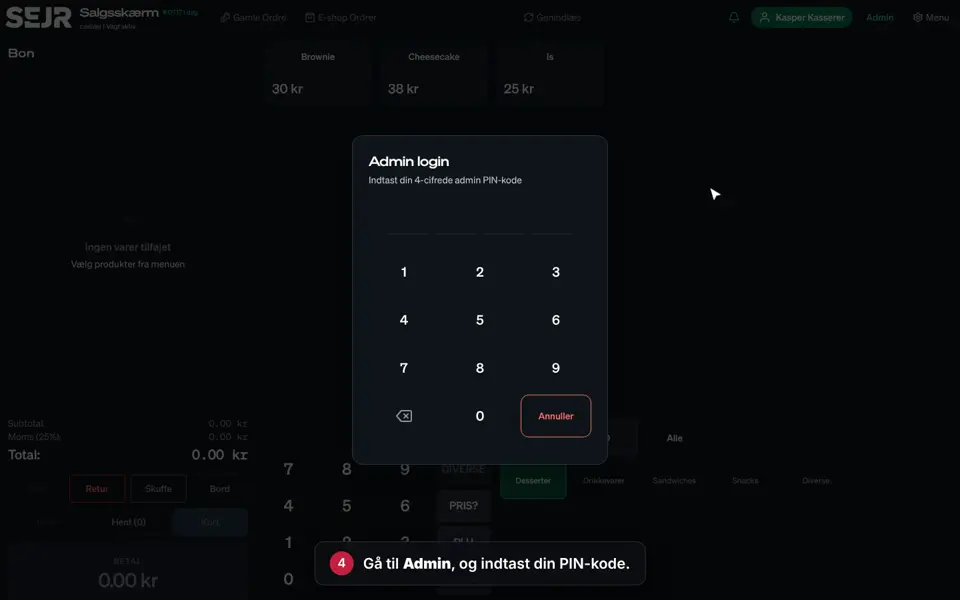
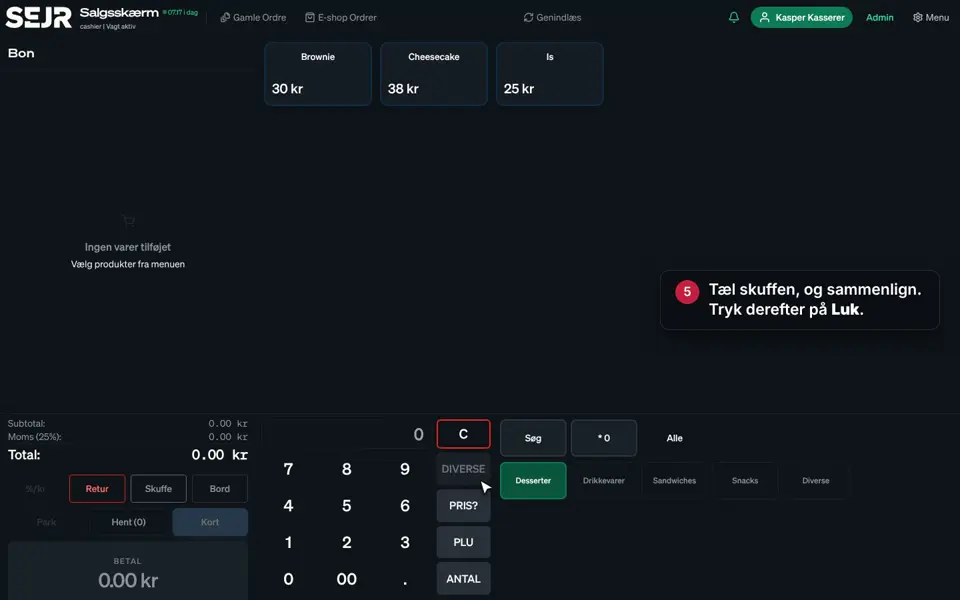
- Tap Admin at the top right of the till.
- Enter your 4-digit admin PIN.
- Choose Enheder (Devices) in the menu on the left.
- Tap the Printere (Printers) tab.
- Check whether the printer is shown as Online.
- Tap Test print.
- If no receipt comes out, tap Rediger (Edit), and check the IP address.
- Tap Annuller (Cancel) if the IP address is correct.
- Choose Printstation (Print station) in the menu on the left.
- Check that the station has the right printer and the right categories.
Good to know
- The IP address: It is on the printer's own test printout. Hold the feed button down while you switch the printer on.
- Offline: Check that the printer and the till are on the same network, and switch the printer off and on again.
- Only the kitchen ticket is missing: Check the print station. The item must be in a category that is selected on the station.
- Receipts: Tap Sæt som primær (Set as primary) on the printer the receipts should be printed on.
Finishing up
Now you have checked the printer and the print station.
Still not working? Contact SEJR Support. We are happy to help.
Did the guide help you?