SEJR POS · Reports and accounts
Use the dashboard
Here you learn how to use the dashboard in Admin.
Watch how it is done43 sec.
The dashboard gives you a quick overview of revenue, payments and the best-selling products.
Step by step
Tick a step when it is done
Button names are written as they appear on a till set to Danish. The brackets give the name on a till set to English, the first time a button is mentioned. Change the till's language
- Tap Admin at the top right of the till.
- Enter your 4-digit admin PIN.
- Choose Dashboard in the menu on the left.
- Choose the period at the top, e.g. Denne måned (This month).
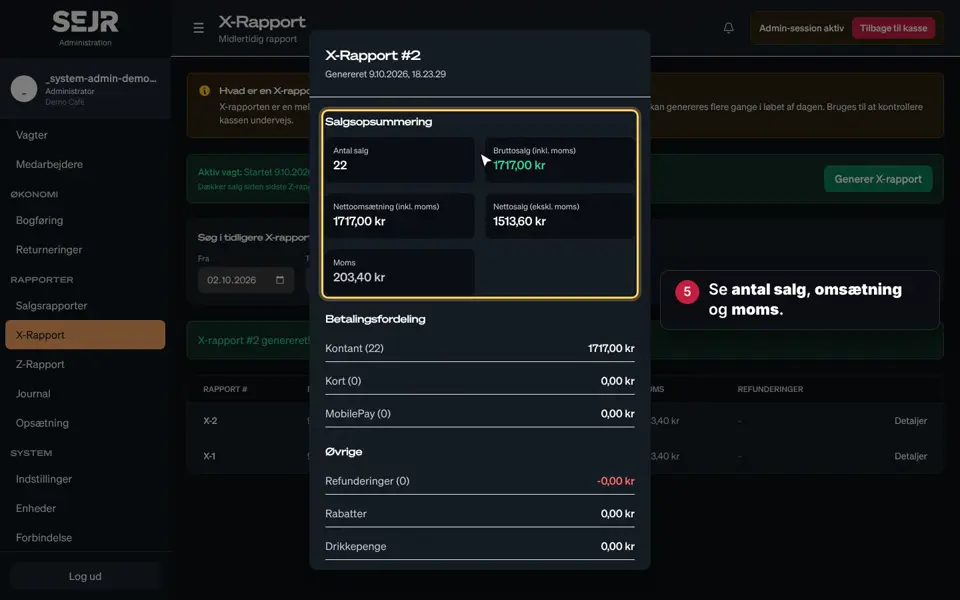
- See revenue, number of sales and VAT in the boxes at the top.
- Under Betalingsfordeling (Payment breakdown) you see how customers have paid.
- Under Top produkter (Top products) you see what sells the most.
- Under Seneste salg (Latest sales) you see the most recent sales.
- Scroll down to see sales per hour.
- Tap Restaurant to see figures for tables and orders.
Good to know
- Choose a period: Choose your own dates if the fixed periods do not fit.
- Restaurant: Shows top tables, serving time, order types, busy hours and bookings. The figures only appear when sales are made to tables.
- Sales per hour shows when in the day you are busy.
- The dashboard is the first thing you see when you log in to Admin.
Finishing up
Now you know the dashboard.
If you need more detail, see Salgsrapporter (Sales reports) under Rapporter (Reports).
Still not working? Contact SEJR Support. We are happy to help.
Did the guide help you?