SEJR POS · Reports and accounts
Z report by email
Here you learn how to have the Z report sent automatically by email in SEJR POS.
Watch how it is done33 sec.
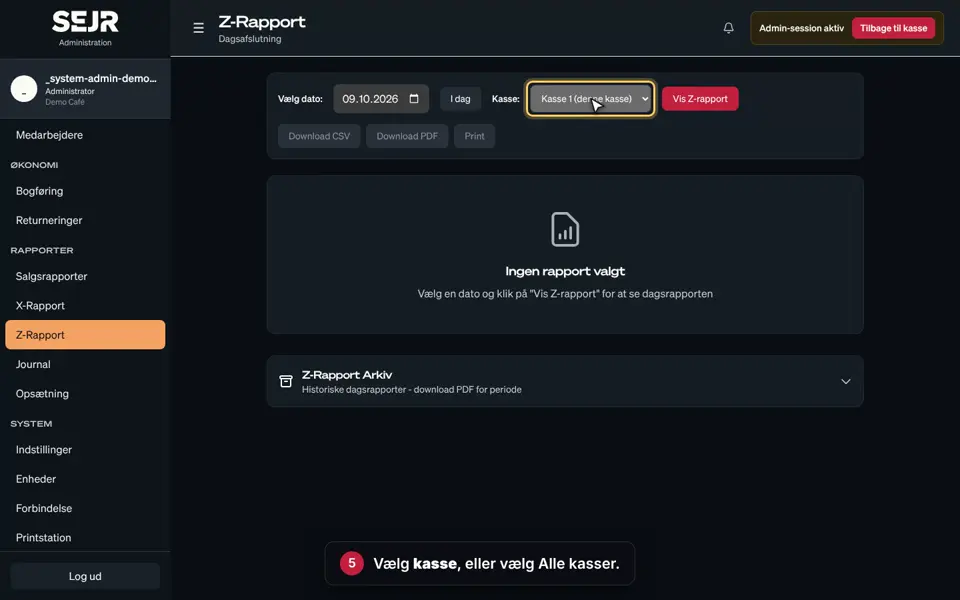
The report is sent as a PDF as soon as the day is closed on the till. You find the setting under Admin → Opsætning (Admin → Setup).
Step by step
Tick a step when it is done
Button names are written as they appear on a till set to Danish. The brackets give the name on a till set to English, the first time a button is mentioned. Change the till's language
- Tap Admin at the top right of the till.
- Enter your 4-digit admin PIN.
- Choose Opsætning in the menu on the left.
- Choose the department you want to set up.
- Type the email address of the person who should get the report in the field under Modtagere (Recipients).
- Tap Tilføj (Add). You can add up to 10 recipients.
- Switch on Send Z-rapport pr. mail (Email the Z-report), so that it says TIL (ON).
- Tap Gem (Save).
Good to know
- At least one recipient: You must add at least one email address before you can switch sending on.
- Remove a recipient: Tap Fjern (Remove) next to the address, then tap Gem.
- Several departments: Each department has its own setup.
Finishing up
Now you get the Z report by email every time the day is closed.
Is the email not arriving? Check your spam folder, and check that the address is spelt correctly.
Still not working? Contact SEJR Support. We are happy to help.
Did the guide help you?