SEJR POS · Reports and accounts
Use sales reports
Here you learn how to use sales reports in SEJR POS.
Watch how it is done40 sec.
A sales report shows the revenue, the VAT and the number of sales for the period you choose, e.g. today, a week or a month.
Step by step
Tick a step when it is done
Button names are written as they appear on a till set to Danish. The brackets give the name on a till set to English, the first time a button is mentioned. Change the till's language
- Tap Admin at the top right of the till.
- Enter your 4-digit admin PIN.
- Choose Salgsrapporter (Sales reports) in the menu on the left.
- Choose the period in Fra dato (From date) and Til dato (To date). Tap I dag (Today) to see today's sales.
- Tap Hent rapport (Load report).
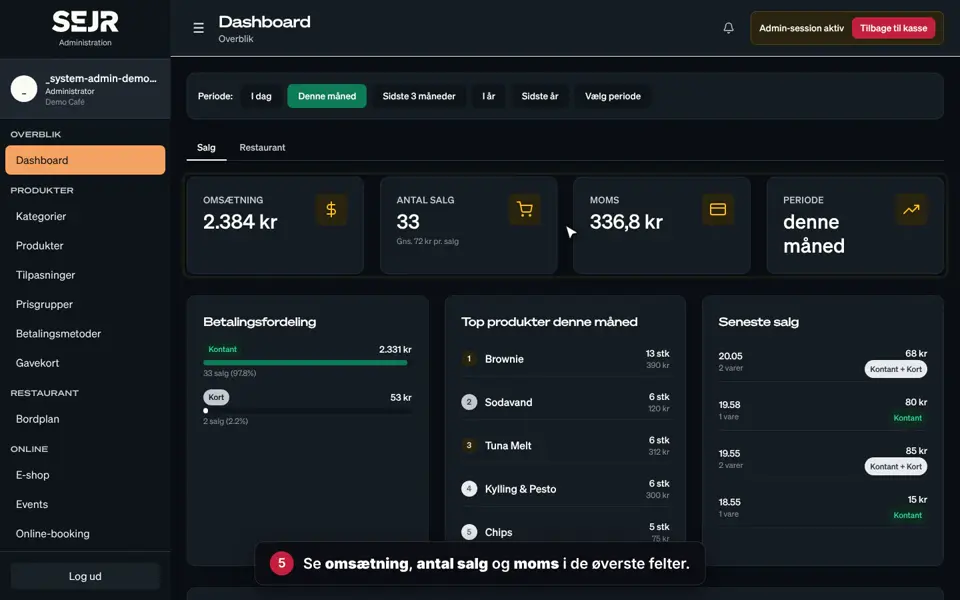
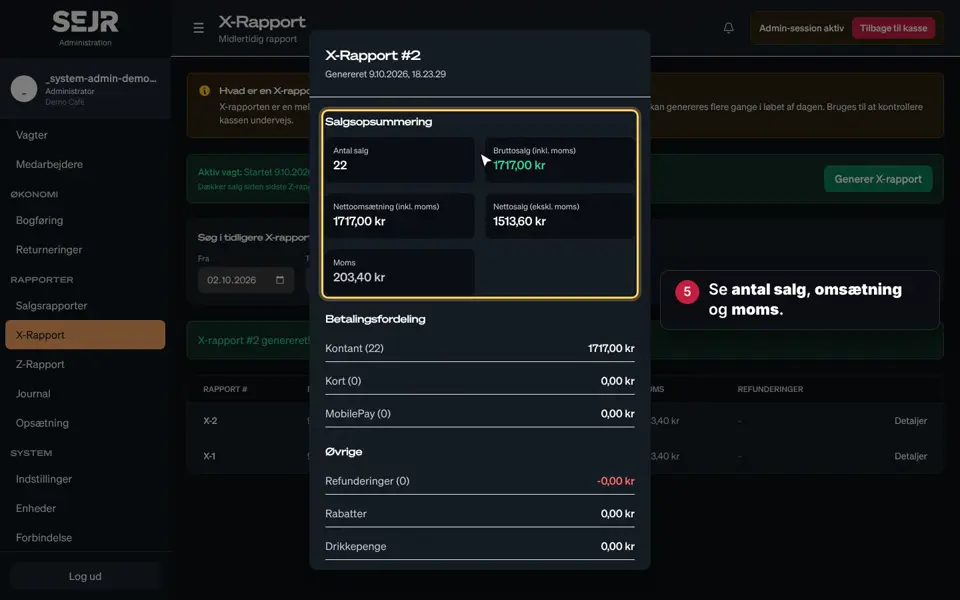
- See the revenue with and without VAT, the VAT and the number of sales.
- See how the sales are split between payment types under Fordeling på betalingstyper (Breakdown by payment type).
- Tap Download PDF to save the report.
- Tap Eksporter salg (CSV) (Export sales (CSV)) to open the sales in e.g. Excel.
Good to know
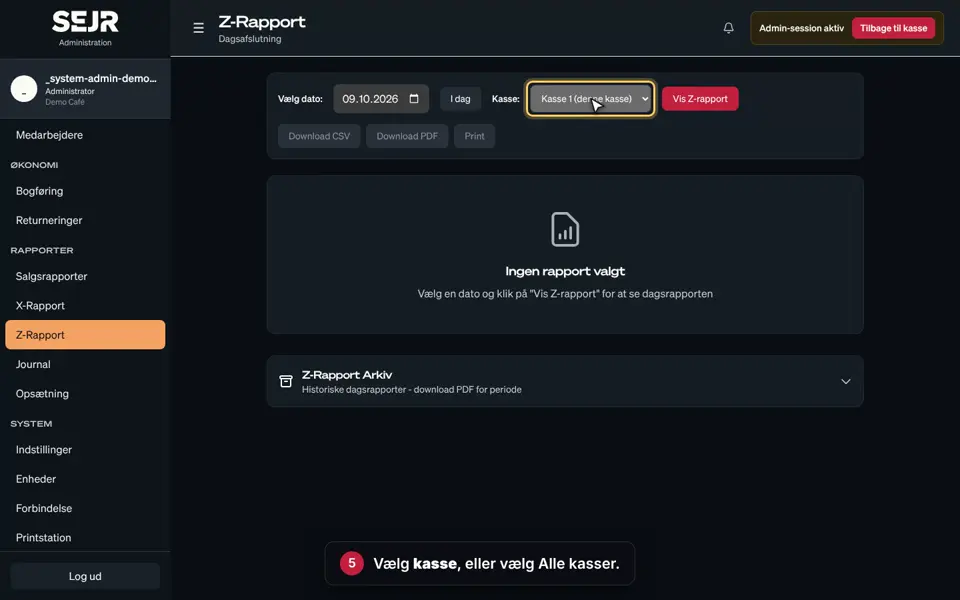
- Z-Rapport (Z-Report): The Z-Rapport button takes you straight to the day's Z reports.
- Kassevagter (Shifts): The Kassevagter button shows an overview of your shifts.
- Sales report or Z report? The sales report is an overview of any period you choose. The Z report is the official close of the day.
Finishing up
Now you can always see how your sales are going.
Do the figures look wrong? Check that you have chosen the right period, and tap Hent rapport again.
Still not working? Contact SEJR Support. We are happy to help.
Did the guide help you?