SEJR POS · Daily use
Sell on the till
Here you learn how to make a sale on the till in SEJR POS.
Watch how it is done43 sec.
The till consists of the order on the left, the products at the top, the number pad in the middle and the categories at the bottom right.
Step by step
Tick a step when it is done
Button names are written as they appear on a till set to Danish. The brackets give the name on a till set to English, the first time a button is mentioned. Change the till's language
- Choose a category at the bottom right.
- Tap the product. It is added to the order on the left.
- If the product has add-ons, a window opens. Choose the add-ons, e.g. milk.
- Tap TILFØJ (ADD).
- Tap + or − next to the item on the order if you want to change the quantity.
- Tap BETAL (PAY) at the bottom left.
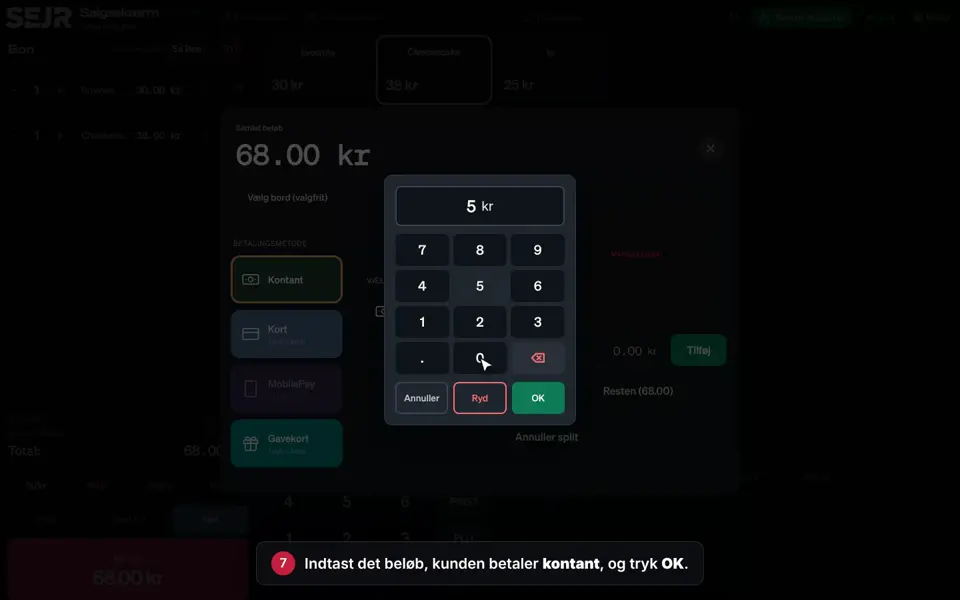
- Tap the note the customer pays with. If the customer pays the exact amount, tap Lige penge (Exact amount).
- Tap Gennemfør (Complete) and give the customer their change.
- Choose Print kvittering (Print receipt), Send via email or Ingen kvittering (No receipt).
Other buttons on the till
- Delete an item: Tap the bin next to the item. Ryd (Clear) removes all items from the order.
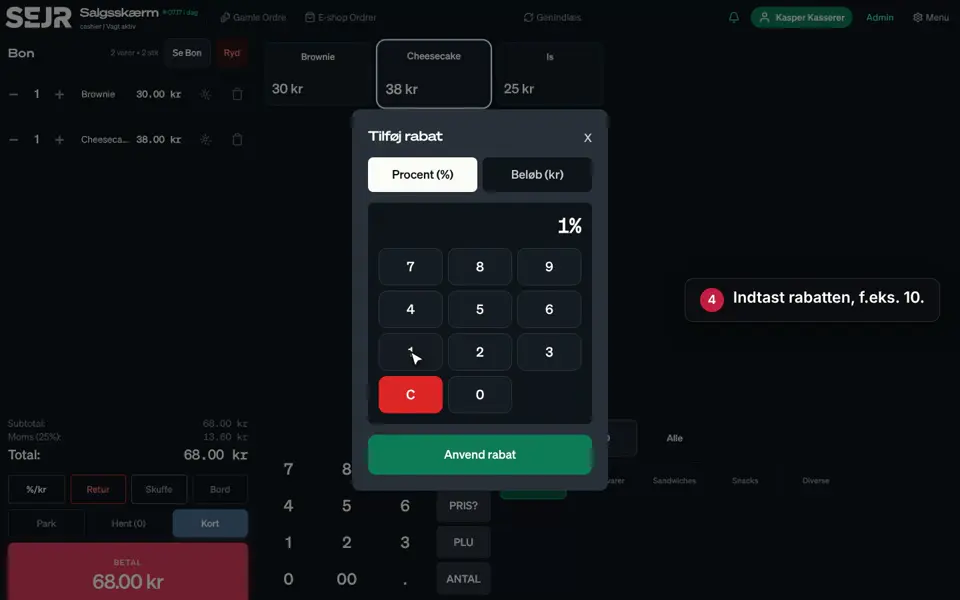
- %/kr: Give a discount in per cent or in kroner.
- Retur (Return): Take an item back as a return and give the money back.
- Skuffe (Drawer): Open the cash drawer without a sale.
- Park and Hent (Pick up): Save an order for later, and pick it up again.
- Kort (Card): Send the whole amount straight to the card terminal with one tap.
- Søg (Search): Find a product by its name.
- PLU: Enter the item number and tap PLU.
- ANTAL (QTY): Enter the quantity, tap ANTAL, and then tap the product.
- DIVERSE (MISC): Enter an amount and tap DIVERSE to sell something that has not been created as a product.
- PRIS? (PRICE?): Check the price of an item without selling it.
Finishing up
The sale is now complete, and the order is ready for the next customer.
If the customer is paying by card, choose Kort in the payment window instead of a note.
Cannot find a product? Tap Genindlæs (Reload) at the top of the till.
Still not working? Contact SEJR Support. We are happy to help.
Did the guide help you?