SEJR POS · Daily use
Sell and redeem gift cards
Here you learn how to sell a gift card, and how the customer pays with it later.
Watch how it is done52 sec.
If the customer does not use the whole amount, a new gift card is printed with the rest.
Step by step
Tick a step when it is done
Button names are written as they appear on a till set to Danish. The brackets give the name on a till set to English, the first time a button is mentioned. Change the till's language
- Tap Menu at the top right.
- Tap Gavekort (Gift card).
- Choose the amount, e.g. 200 kr.
- Choose how the customer pays, e.g. Kontant (Cash).
- Tap Tag betaling (Take payment). The gift card is printed.
- Give the customer the gift card, and tap Færdig (Done).
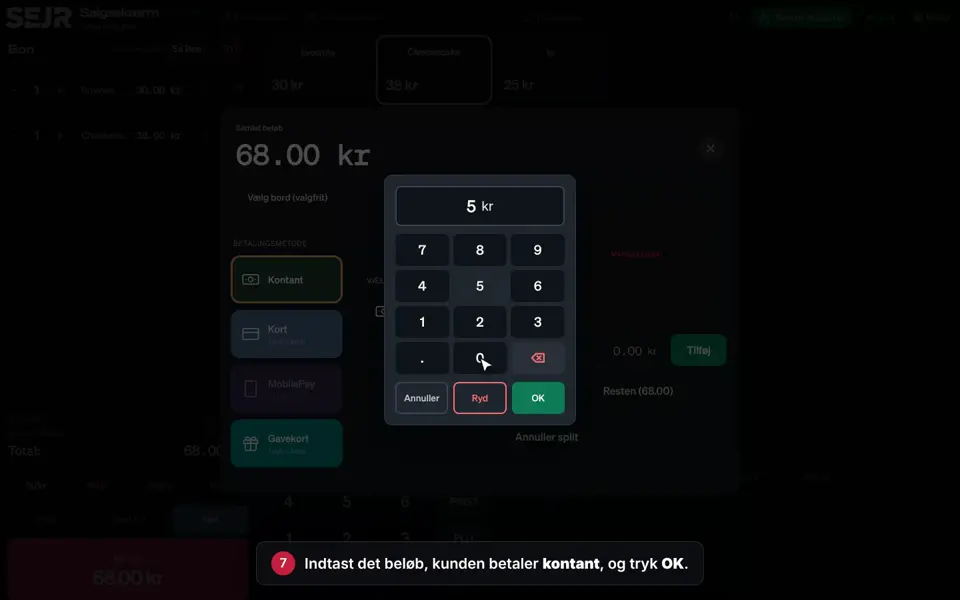
- When the customer wants to pay with the gift card, tap BETAL (PAY).
- Choose Gavekort on the left.
- Scan the gift card, or enter the code.
- Tap Slå op (Look up), and check the balance.
- Tap Gennemfør (Complete).
- Choose whether the customer should have a receipt.
Good to know
- Validity: Choose 1, 2, 3 or 5 years when you sell the gift card. The default is set under Admin → Indstillinger (Admin → Settings).
- Balance lookup: Under Menu → Gavekort → Saldoopslag (Menu → Gift card → Balance lookup) you can see how much is left on a card.
- VAT: The sale of a gift card is free of VAT. VAT applies when the gift card is used.
- Can you not see Gavekort in the menu? Switch the module on under Admin → Indstillinger → Moduler (Admin → Settings → Modules).
Finishing up
The gift card has been used, and the remaining amount is on a new gift card.
Still not working? Contact SEJR Support. We are happy to help.
Did the guide help you?