SEJR POS · Daily use
End the day
Here you learn how to end the day on the till in SEJR POS.
Watch how it is done52 sec.
When you end the day, you count the till and make the day's Z report. The Z report is the official close of the day and is needed for your accounts.
Step by step
Tick a step when it is done
Button names are written as they appear on a till set to Danish. The brackets give the name on a till set to English, the first time a button is mentioned. Change the till's language
- Tap Menu at the top right of the till.
- Choose Afslut dag (Z-rapport) (End day (Z-report)).
- Enter your 4-digit admin PIN.
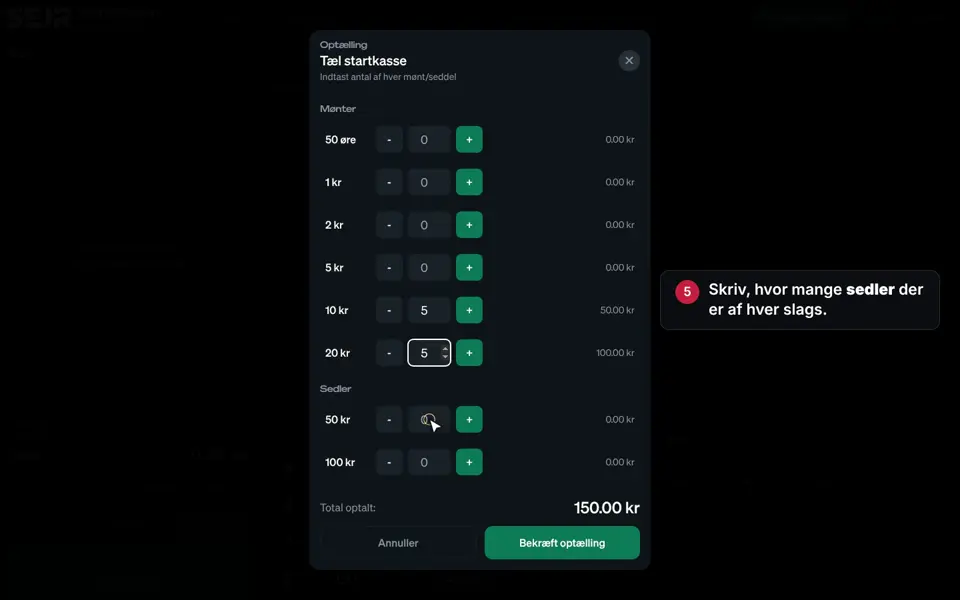
- Count the till. Enter the number of each coin and note, or use + and -.
- Check that it says Kassen stemmer (The till balances). If not, the difference is shown, and you can count again.
- Tap Bekræft optælling (Confirm count).
- Enter how much money is to stay in the till for tomorrow. The rest is taken out of the till.
- Tap Bekræft (Confirm).
- Look through the day's revenue, payments and VAT.
- Tap Generer Z-Rapport (Generate Z-Report).
- Tap Luk (Close). The Z report is printed automatically.
Good to know
- Parked orders: If you have open, parked orders, they must be paid or cancelled before the day can be ended. The till shows you the way.
- The till does not balance: Count again with Tilbage til optælling (Back to counting). If there is still a difference, tap Registrer afvigelse (Record discrepancy). Add a note if you want, e.g. small change. The discrepancy is saved in the journal.
- The shift is closed: When the day has been ended, the shift is closed automatically. Next time, you start a new shift with Start vagt (Start shift).
- Find the report again: See the guide Find your Z report.
- By email: You can have the Z report sent automatically. See the guide Z report by email.
Finishing up
The day is now ended, and the Z report is saved.
Did the Z report not come out of the printer? Check that the printer is switched on and has paper. You can always print it again under Admin → Z-Rapport.
Still not working? Contact SEJR Support. We are happy to help.
Did the guide help you?