SEJR POS · Admin
Create a product
Here you learn how to create a new product in SEJR POS, so it can be sold on the till.
It only takes a couple of minutes, and you need your admin PIN.
Step by step
Tick a step when it is done
Button names are written as they appear on a till set to Danish. The brackets give the name on a till set to English, the first time a button is mentioned. Change the till's language
- Tap Admin at the top right of the till.
- Enter your 4-digit admin PIN.
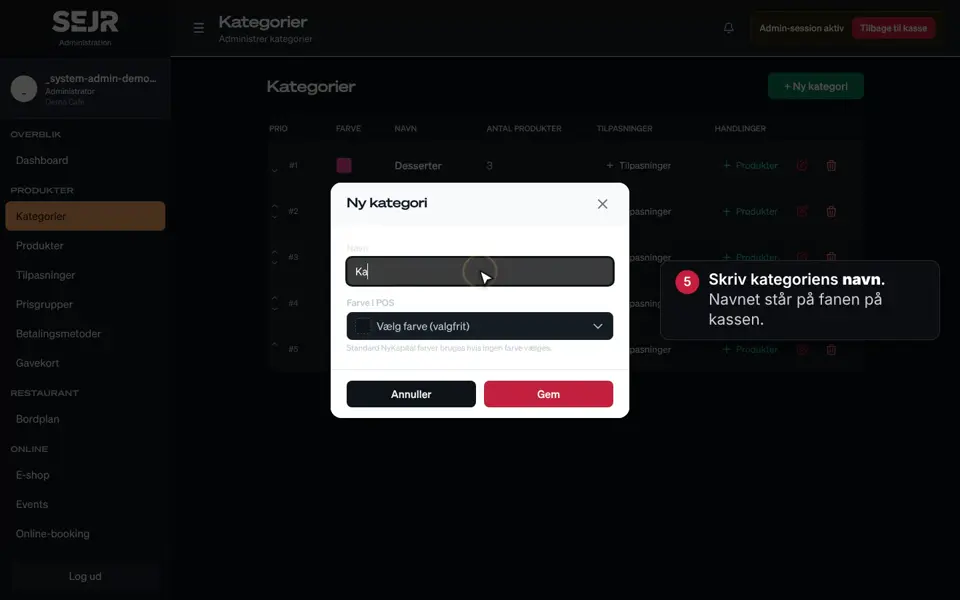
- Choose Produkter (Products) in the menu on the left.
- Tap + Nyt produkt (+ New product) at the top right.
- Enter the product's name in the Navn (Name) field.
- If you want, enter a short text in the Beskrivelse (Description) field. It is only shown in the e-shop.
- Check the Varenummer (PLU) (Item number (PLU)) field. It is filled in automatically, but you can change it.
- In the Primær kategori (Primary category) field, choose the category the product should sit under.
- Enter the price in the Pris inkl. moms (kr) (Price incl. VAT, kr) field.
- Check that Momssats (VAT rate) is right. Most items have 25%.
- Make sure that Aktiv (Active) is ticked.
- Tap Gem (Save).
- Tap Tilbage til kasse (Back to register) at the top right.
- Tap the category on the till. Your new product is now ready for sale.
Fields you can fill in if you need them
- Stregkode (EAN/UPC) (Barcode (EAN/UPC)): Click in the field and scan the item's barcode.
- Yderligere kategorier (Additional categories): The product is also shown in the categories you choose here.
- Sælges efter vægt (Sold by weight): The price is then per kg.
- Produktbillede (Product image): Choose or upload an image of the product.
- Farve i POS (Color in POS): Gives the button its own colour. If the field is empty, the category's colour is used.
- Tilknyt et produkt (f.eks. pant) (Attach a product (e.g. deposit)): Adds e.g. a deposit to the order every time the product is sold.
- Aldersgrænse (Age limit): Choose 16 or 18 years. The cashier must then confirm the customer's age when selling.
Finishing up
Your product is now created and ready for sale.
You can always change the name, price or category under Admin → Produkter. Tap the pencil icon next to the product.
Can you not see the product on the till? Check that Aktiv is ticked, and that you have chosen the right category. Then tap Genindlæs (Reload) at the top of the till.
Still not working? Contact SEJR Support. We are happy to help.