SEJR POS · Admin
Items with a deposit and an age limit
Here you learn how to create an item with a deposit and an age limit, e.g. a beer.
Watch how it is done49 sec.
The deposit is added to the order automatically, and the cashier must confirm the customer's age when the item is sold.
Step by step
Tick a step when it is done
Button names are written as they appear on a till set to Danish. The brackets give the name on a till set to English, the first time a button is mentioned. Change the till's language
- Tap Admin at the top right of the till.
- Enter your 4-digit admin PIN.
- Choose Produkter (Products) in the menu on the left.
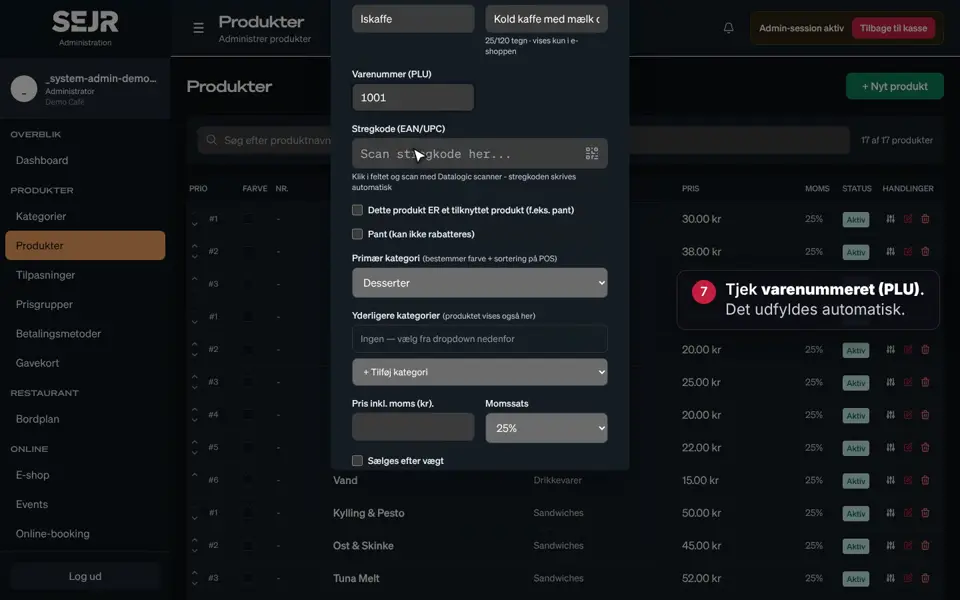
- Tap + Nyt produkt (+ New product).
- Type the name, choose a category, and type the price.
- Tick Tilknyt et produkt (f.eks. pant) (Attach a product (e.g. deposit)).
- Type the deposit's name and amount, e.g. Pant A and 1 kr.
- Check that Pant (Deposit) is ticked. Then the deposit cannot be discounted.
- Choose 18 år (18 years) under Aldersgrænse (Age limit).
- Tap Gem (Save).
- The item and the deposit are now in the list. The deposit is marked as Tilknyttet (Linked).
How it works on the till
- Age limit: When the item is sold, the cashier must choose Visuel bekræftelse (Visual confirmation), ID kontrolleret (ID checked) or Afvis salg (Refuse sale).
- Deposit: The deposit is added to the order as its own line every time the item is sold.
- Use the same deposit again: For the next item, choose Brug eksisterende (Use existing) and the deposit from the list.
- VAT on deposits: If you are unsure about the VAT rate for deposits, ask your bookkeeper or accountant.
Finishing up
The item has been created with a deposit and an age limit.
Still not working? Contact SEJR Support. We are happy to help.
Did the guide help you?